Set a timed assessment
Set a timed exam with a fixed writing time for each student and preparation instructions they can read before starting. Save it for testing before sharing it with your class.
Start on Your Assessments, signed in as an educator. Inktrail saves changes automatically. Students see nothing until you share it.
1. Choose a timed task
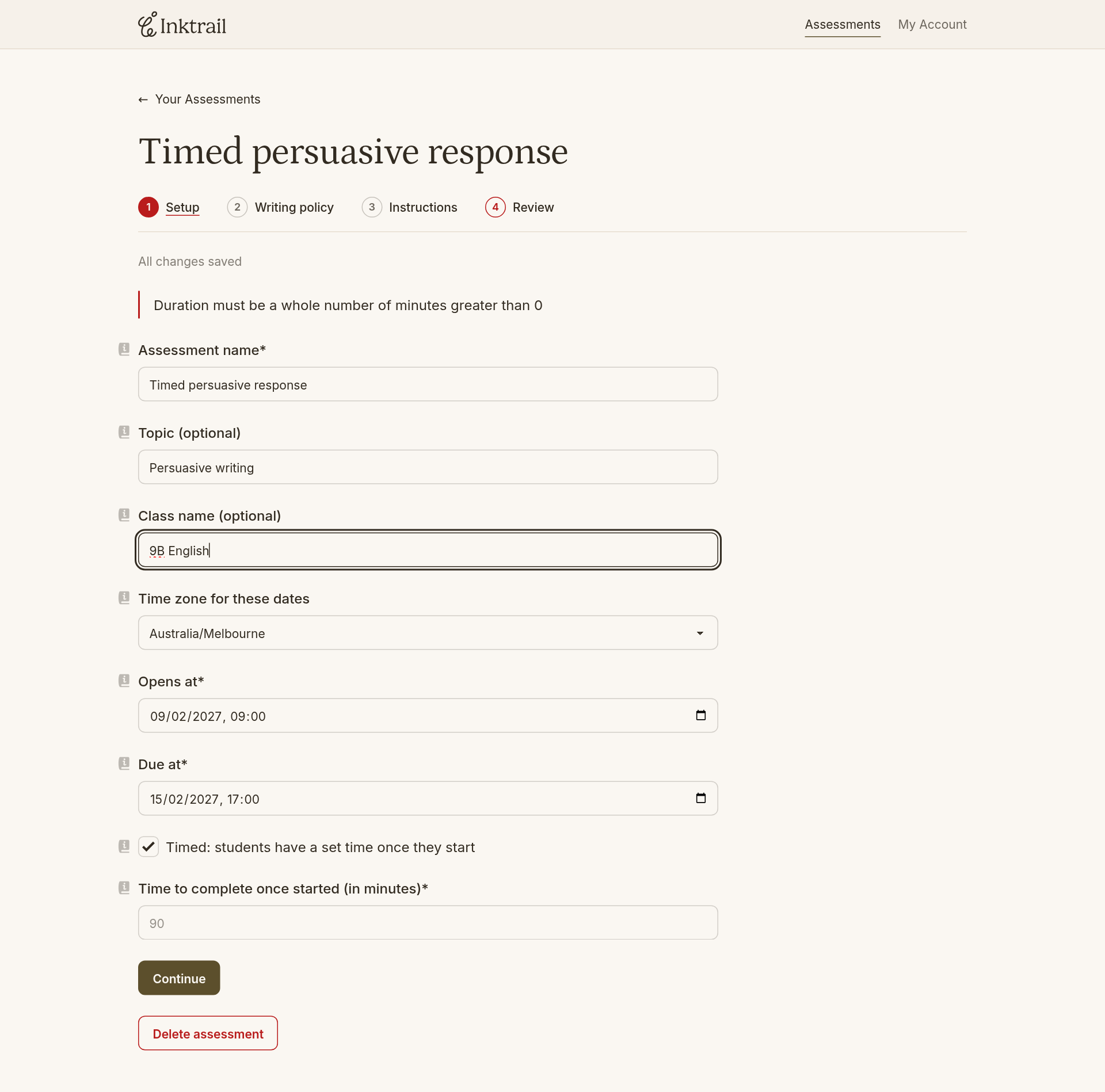
Select New Assessment, then Timed written assessment. Leave Timed: students have a set time once they start checked.
Enter details that help students recognise the task:
- Assessment name: the task's name, shown in students' works.
- Topic and Class name: optional labels under the name that help you and students distinguish similar assessments or the same task set for several classes.
2. Set the dates and duration
Set Opens at to when you want students to start. They can't write before this time. Set Due at to your deadline, or leave the default of one week.
Check Time zone for these dates and change it only if it doesn't match the zone you want. It may be retained from your last assessment; both dates use this zone.
Set Time to complete once started (in minutes) to the writing time each student should receive. Allow for the task's length and difficulty.
Opening the assessment does not start the timer: each student presses Start. Writing stops when their time runs out, and Inktrail submits their saved work. You cannot give one student extra time.
3. Close writing at the due time
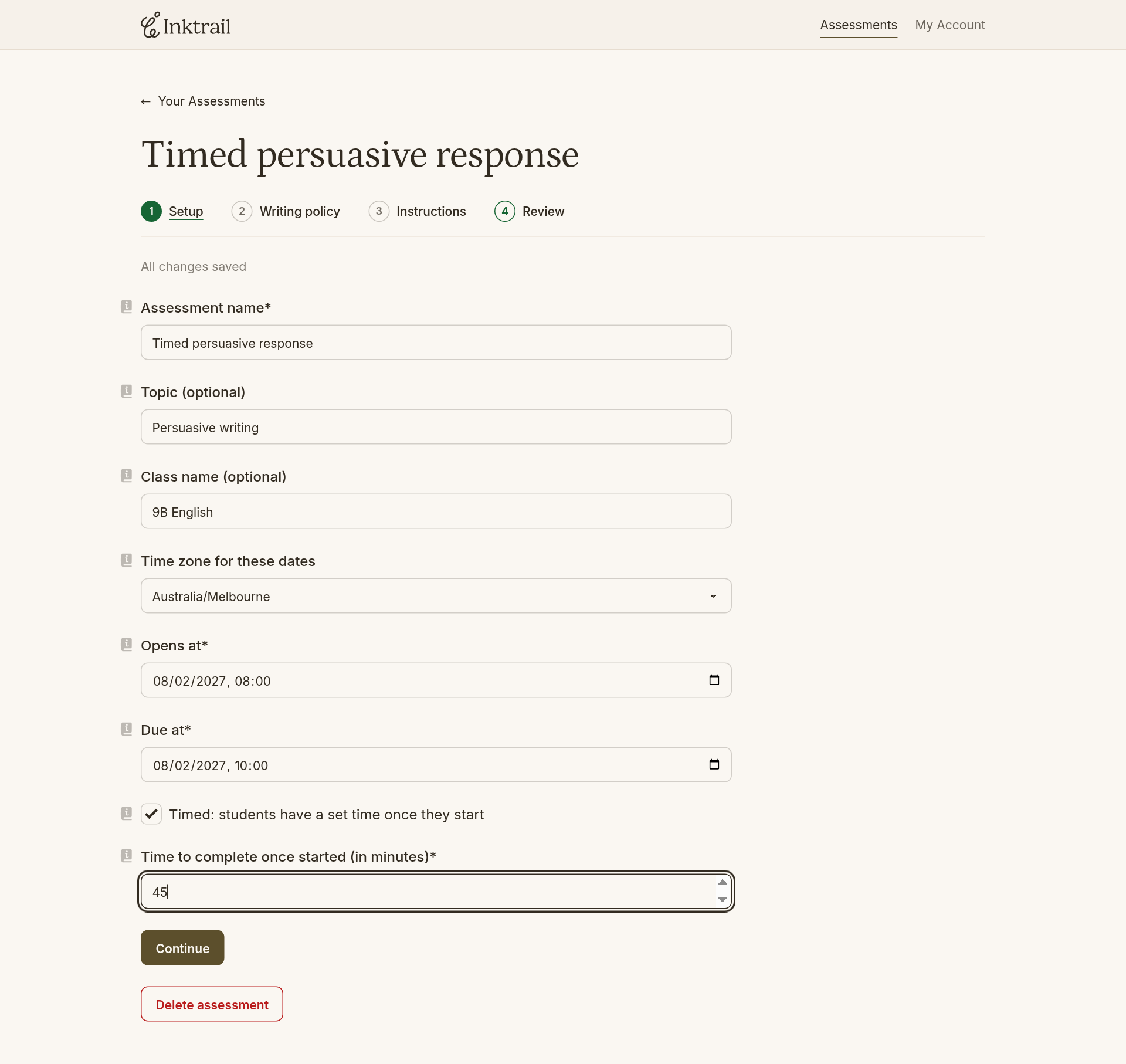
Select Continue. In Writing policy, choose Not allowed for Late submission policy to make the due time a hard cutoff. A student starting with less than their allotted time before the deadline gets less time. The pre-start page warns them.
Use Tell me more beside other policies to check they suit your task; Assessment settings covers the full list.
4. Separate preparation from the task
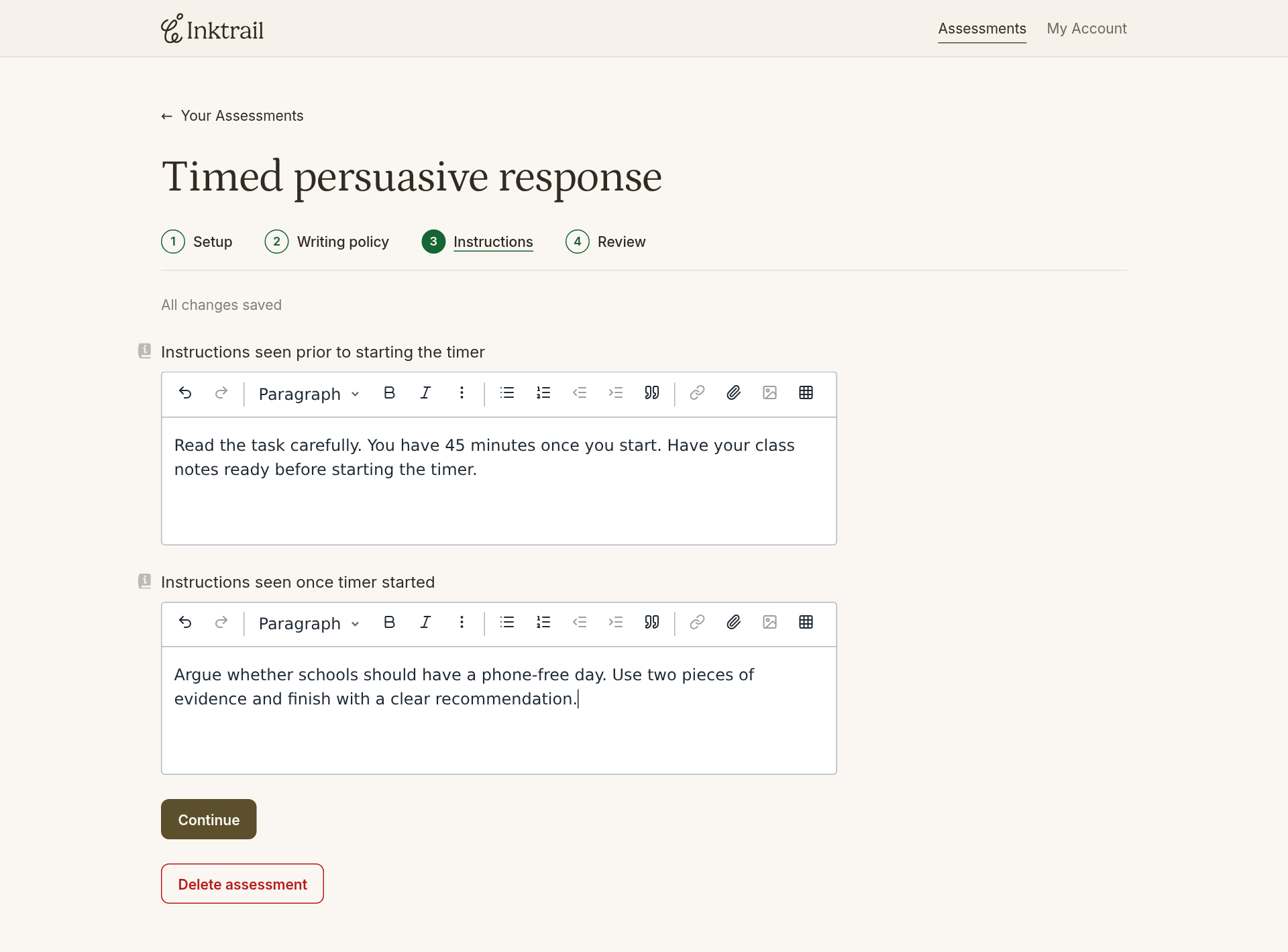
Select Continue. Replace Instructions seen prior to starting the timer with preparation guidance: what students should have ready before they start.
In Instructions seen once timer started, enter the writing prompt and what a completed response should include.
Students can prepare before starting without seeing the writing prompt early.
5. Save for testing
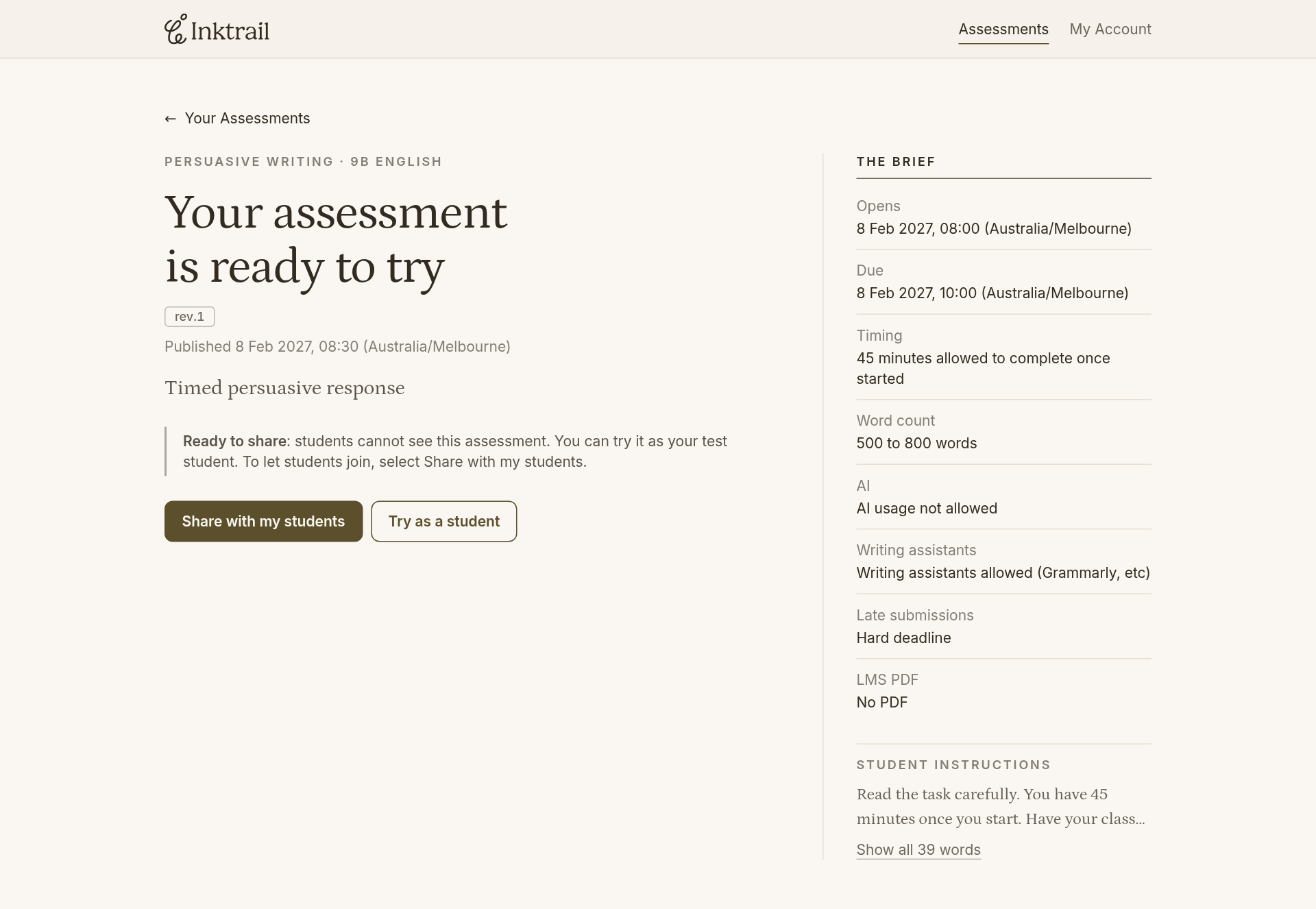
Select Continue to Review. Check the summary, then select Save and try it first.
Your timed assessment is saved for testing, with Try as a student available.