What your writing policies do
Choose writing rules that match your assessment without mistaking a policy statement for an automatic check. Your AI and citation rules tell students what you expect. Writing-assistant restrictions are best effort. Late-work settings control when students can write and submit, but you apply any marking penalty yourself.
Find the policy explanations
From Your Assessments, select New Assessment, then Untimed written assessment. Give the draft a recognisable Assessment name. Topic and Class name are optional labels that help you and students distinguish similar tasks or classes, not policy settings. For example, the screenshots use Persuasive essay: a phone-free school day, Persuasive writing and 9B English.
Inktrail saves each change automatically. Students see nothing until you share the assessment.
Select Writing policy in the step bar. You can inspect the policies without completing the rest of the assessment. Each question-mark button beside a label opens Tell me more help. Read the help for each policy below, using Close between panels. This example leaves the policy choices unchanged.
AI: a rule, not a detector
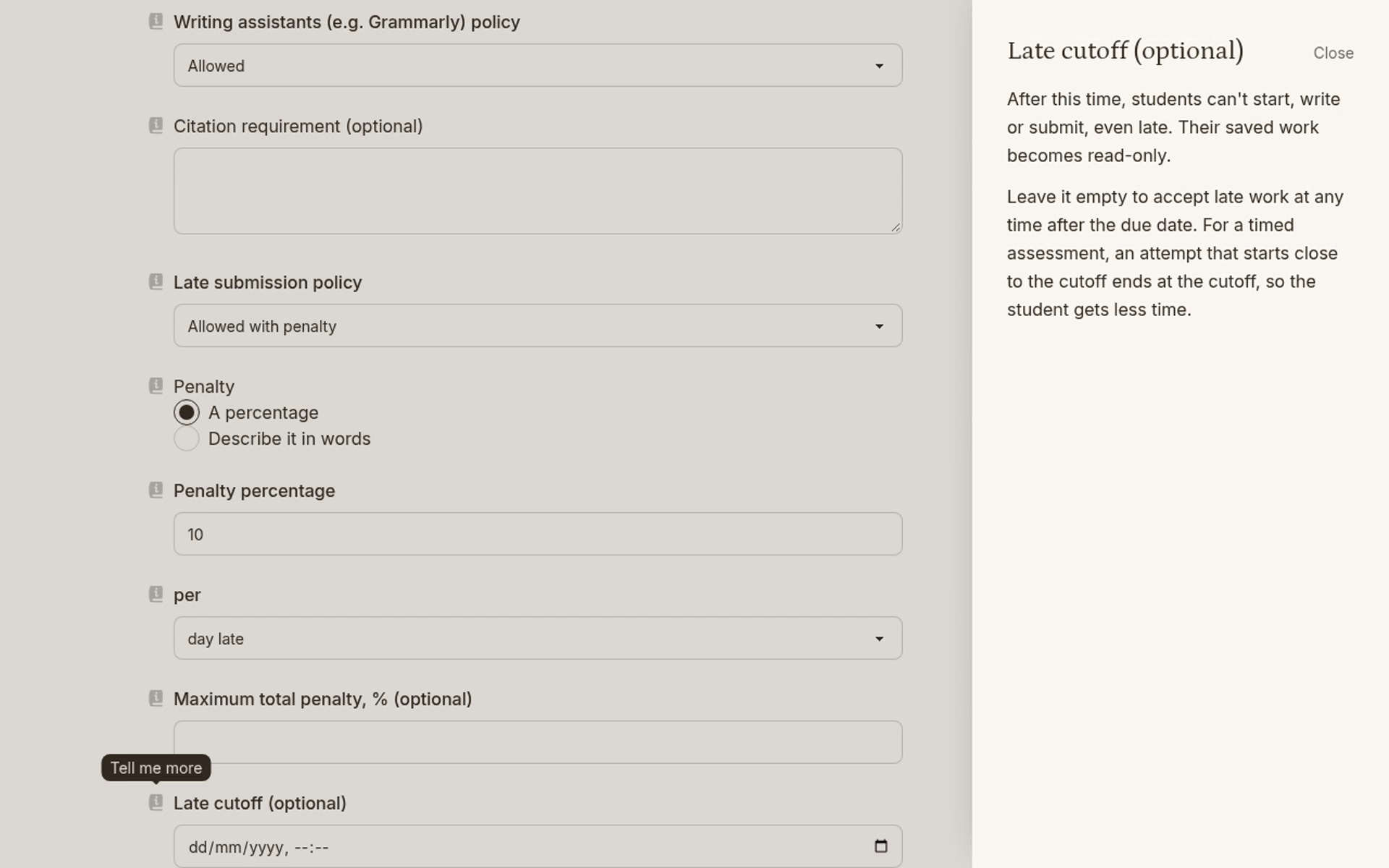
The AI policy choices are Allowed, Limited - guidance only and Not allowed. Students see the rule on their work page and next to the editor while writing.
Inktrail does not detect or block AI use. If you choose Limited - guidance only, explain in your student instructions what guidance means for this task. The choice alone does not define that boundary for your class.
Writing assistants: a best-effort restriction
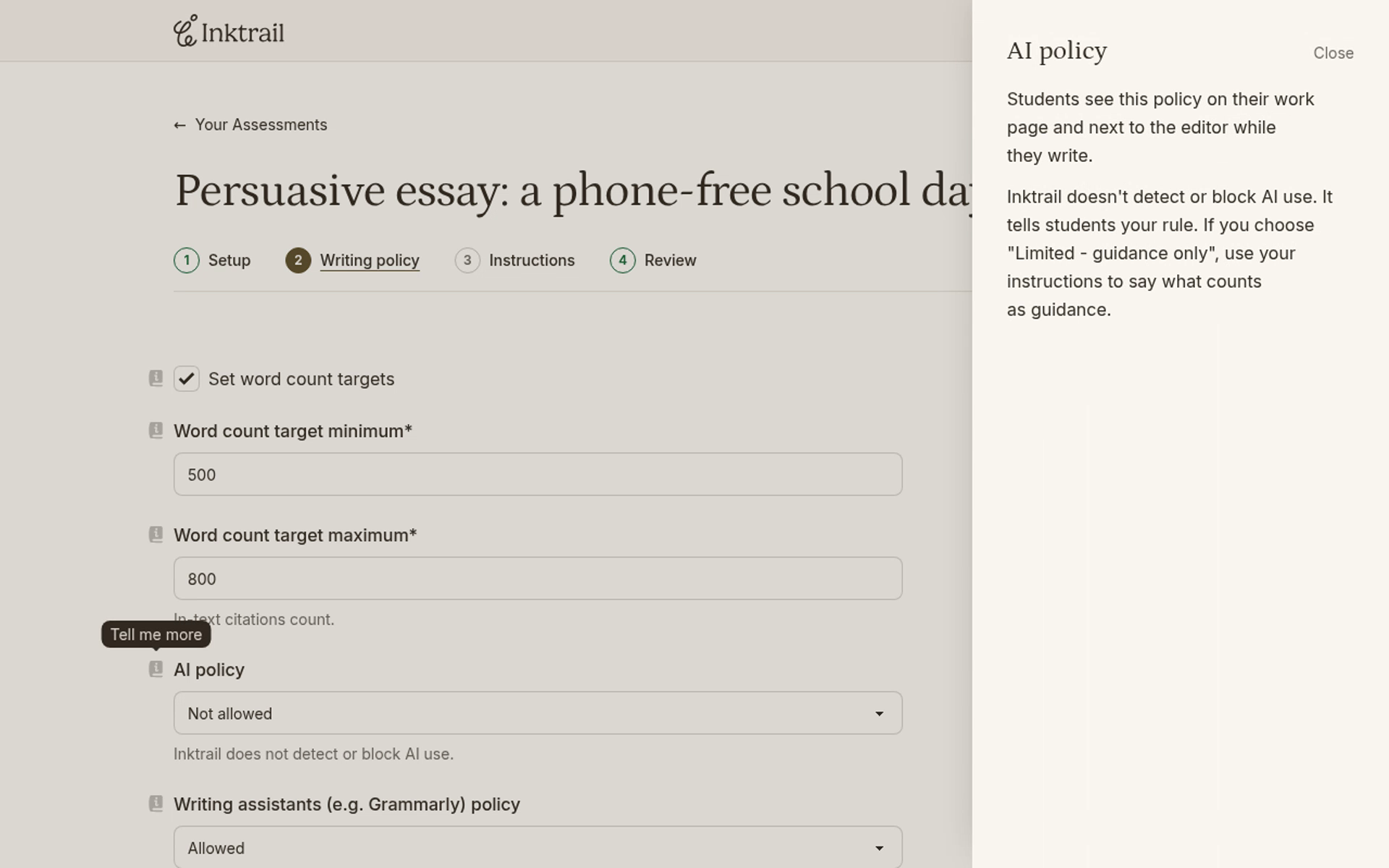
Writing assistants (e.g. Grammarly) policy is separate from the AI policy. Choose Allowed or Not allowed according to whether these tools fit your task. Students see this rule beside the editor.
With Not allowed, Inktrail makes a best effort to block Grammarly and similar tools in the editor and turns off the browser's spell check. This is not a guarantee: some tools or determined students can get around it.
Citations: expectations you assess
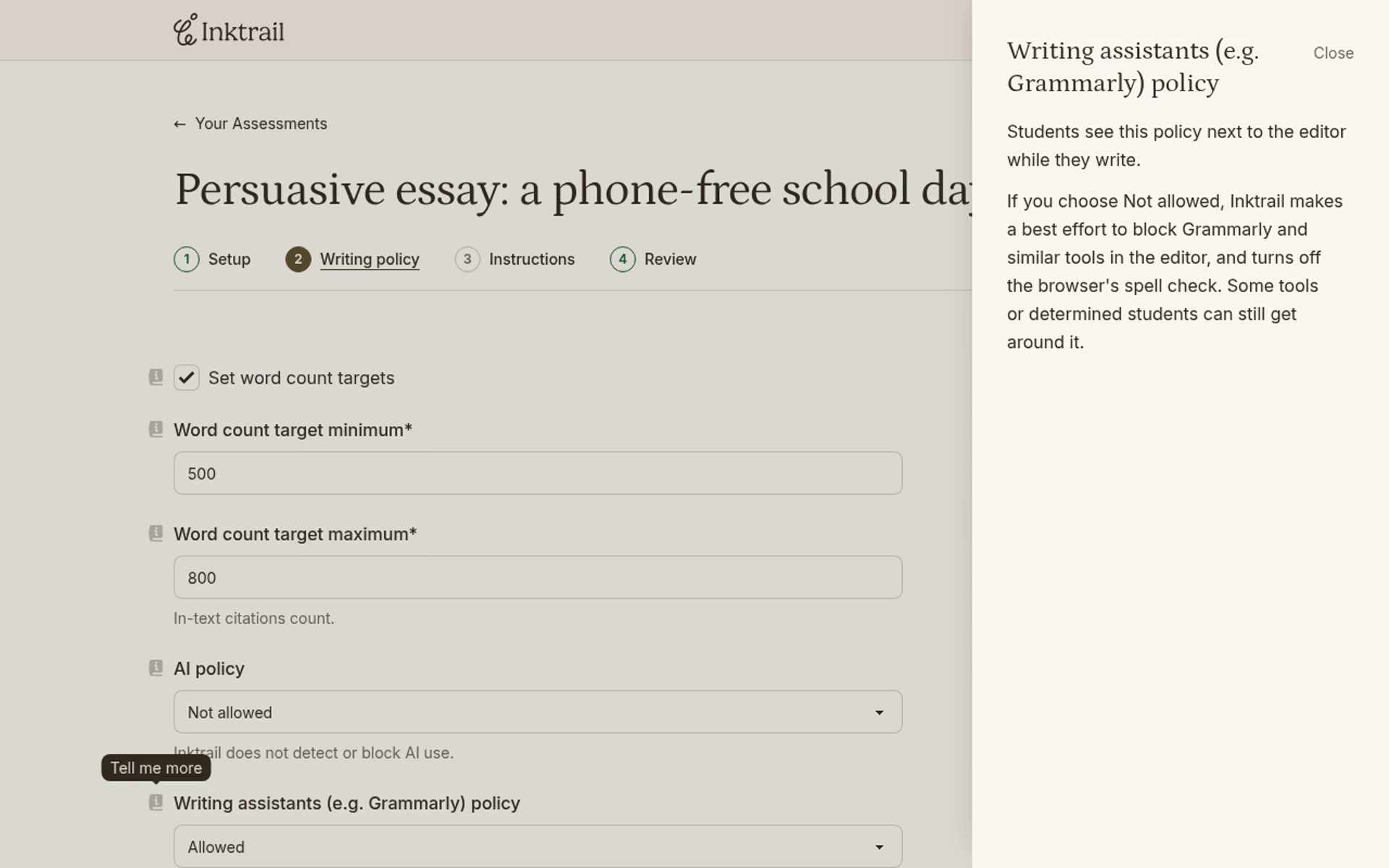
Use Citation requirement (optional) to describe the sources and referencing style you expect. Students see that text on their work page and next to the editor while writing.
Inktrail does not check whether students meet the requirement. Treat it as guidance for students and for your review, not an automatic citation-compliance check.
Late work: access rules and marking rules differ
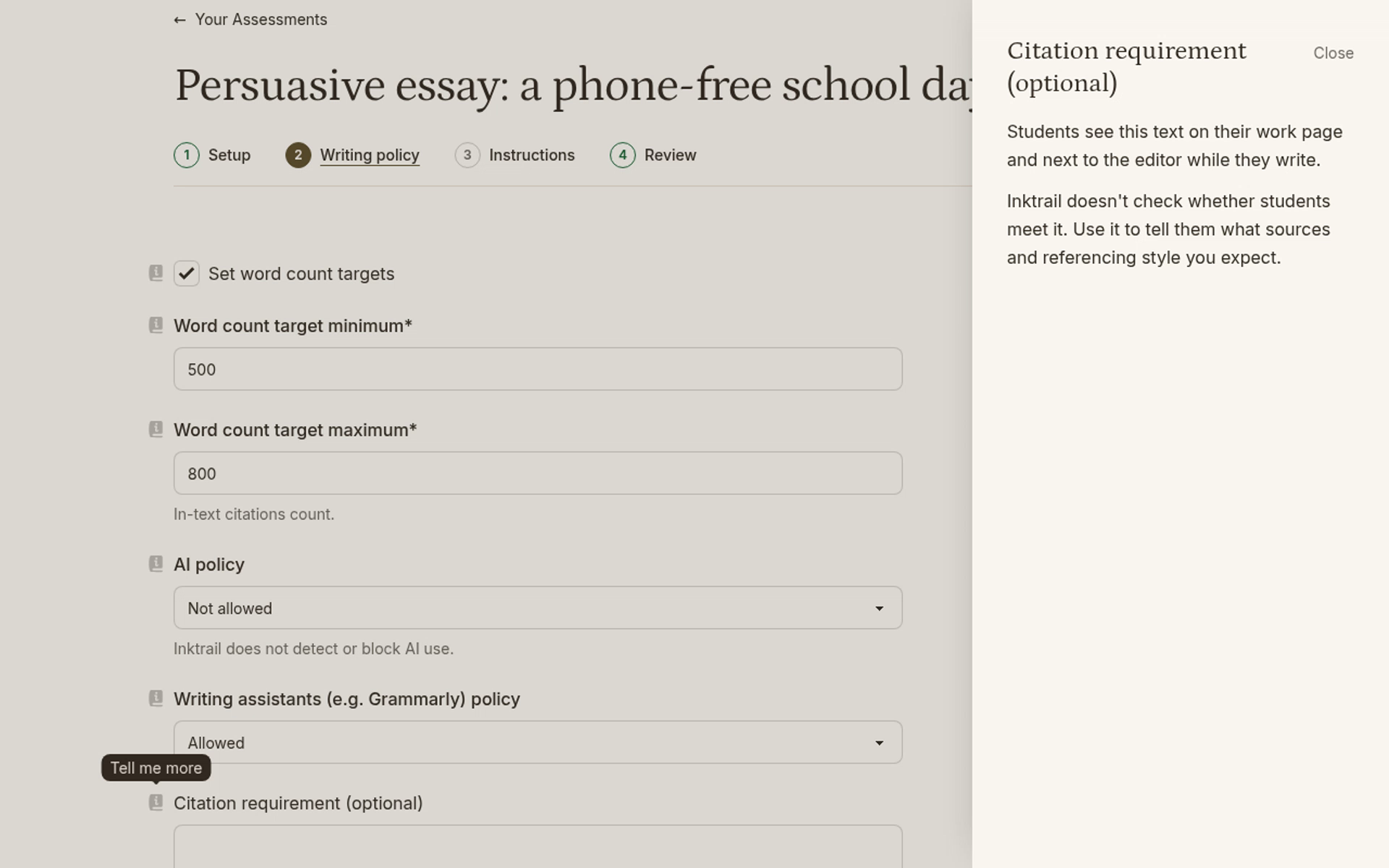
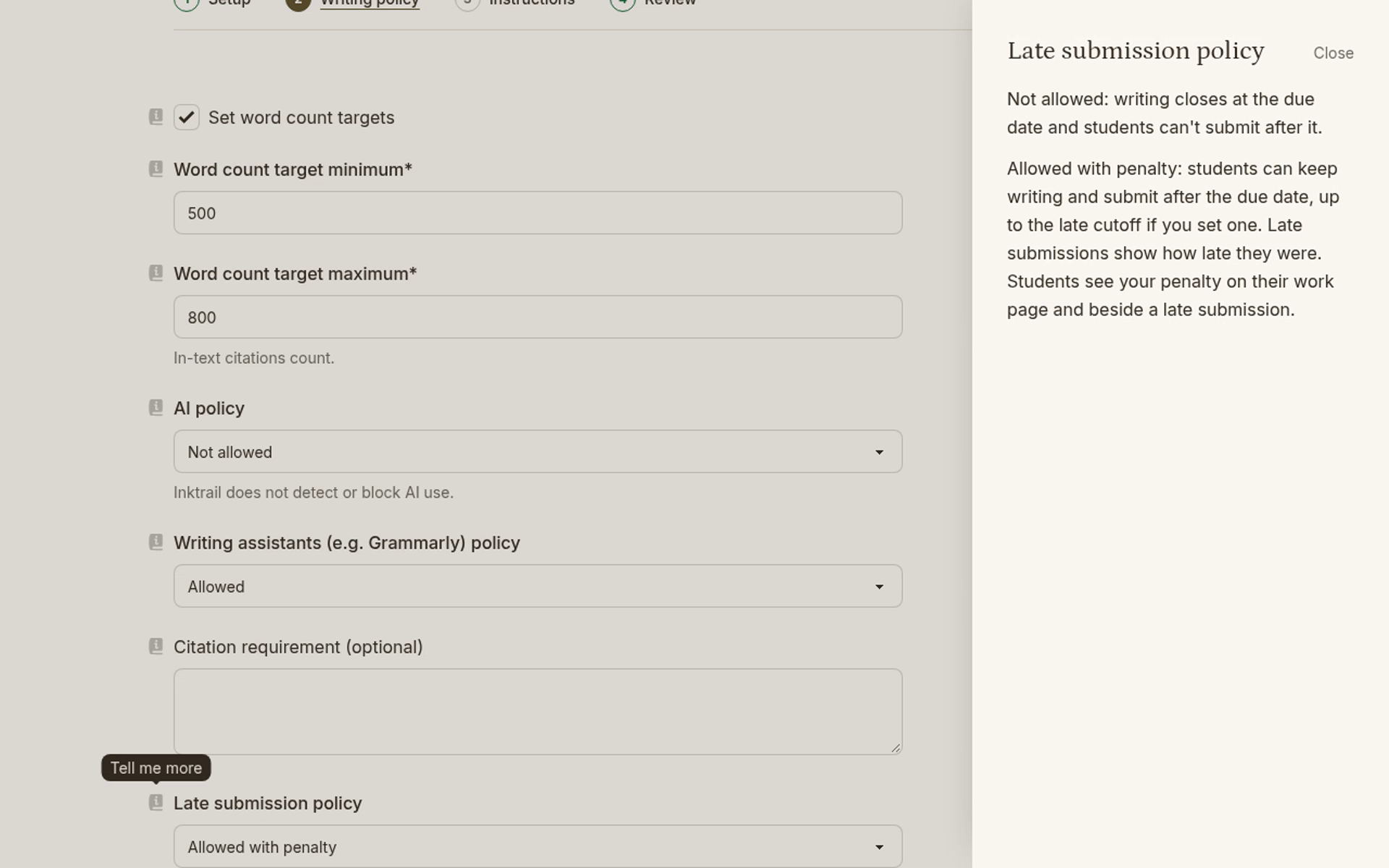
For Late submission policy, Not allowed closes writing at the due date and prevents submission after it. Allowed with penalty lets students keep writing and submit after the due date, up to a late cutoff if you set one. Late submissions show how late they were. Students see your penalty on their work page and beside a late submission.
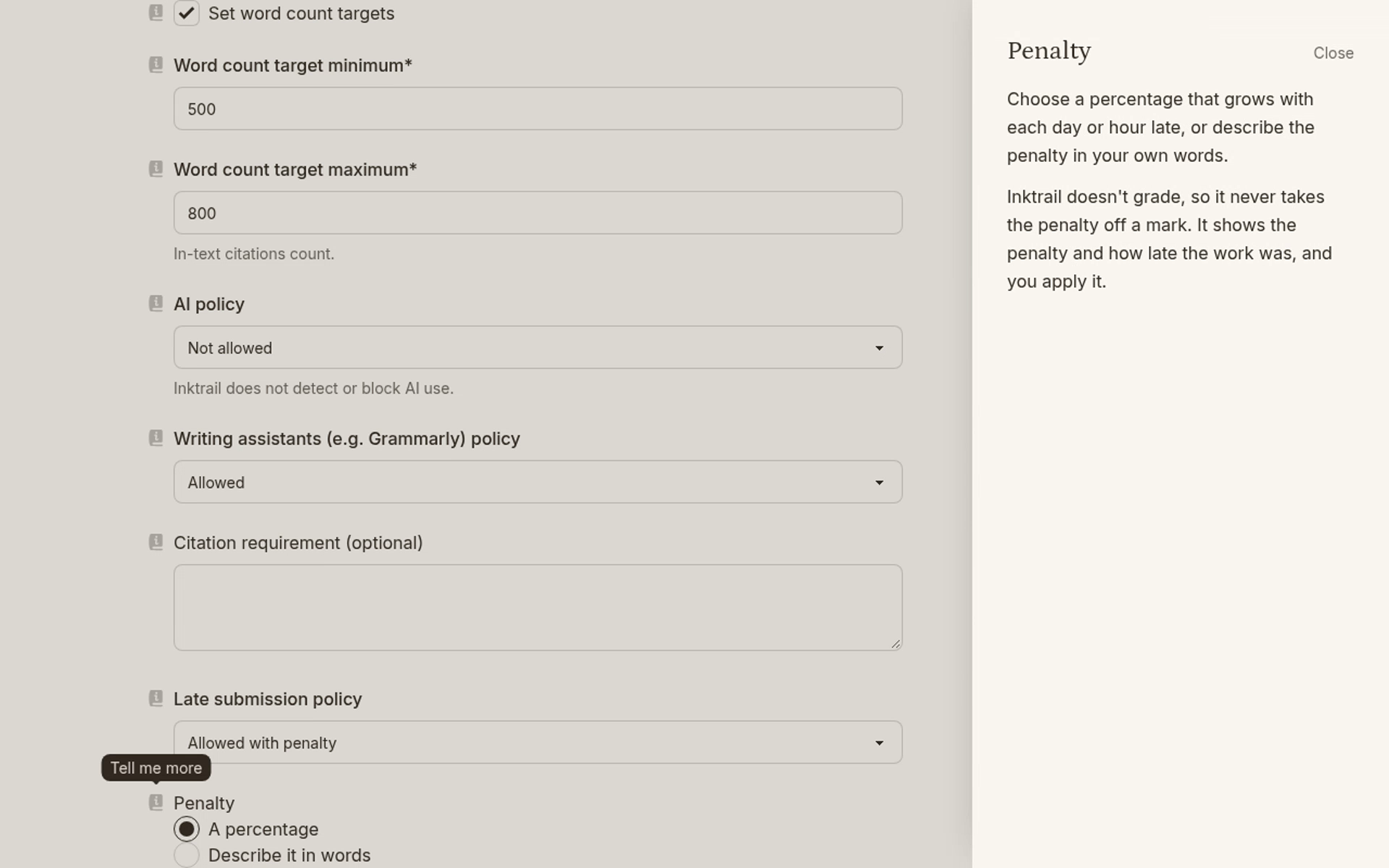
Under Penalty, choose A percentage that grows per day or hour late, or Describe it in words. Inktrail does not grade or subtract a penalty from a mark. It shows the penalty and lateness; you apply the marking rule.
After Late cutoff (optional), students cannot start, write or submit, and saved work becomes read-only. Leave it empty to accept late work at any time after the due date. For timed assessments, starting close to the cutoff gives the student less time: the attempt still ends at the cutoff.