Sign out of all your devices
Sign out everywhere if you left Inktrail open on a shared computer. This also signs you out of the device you are using now.
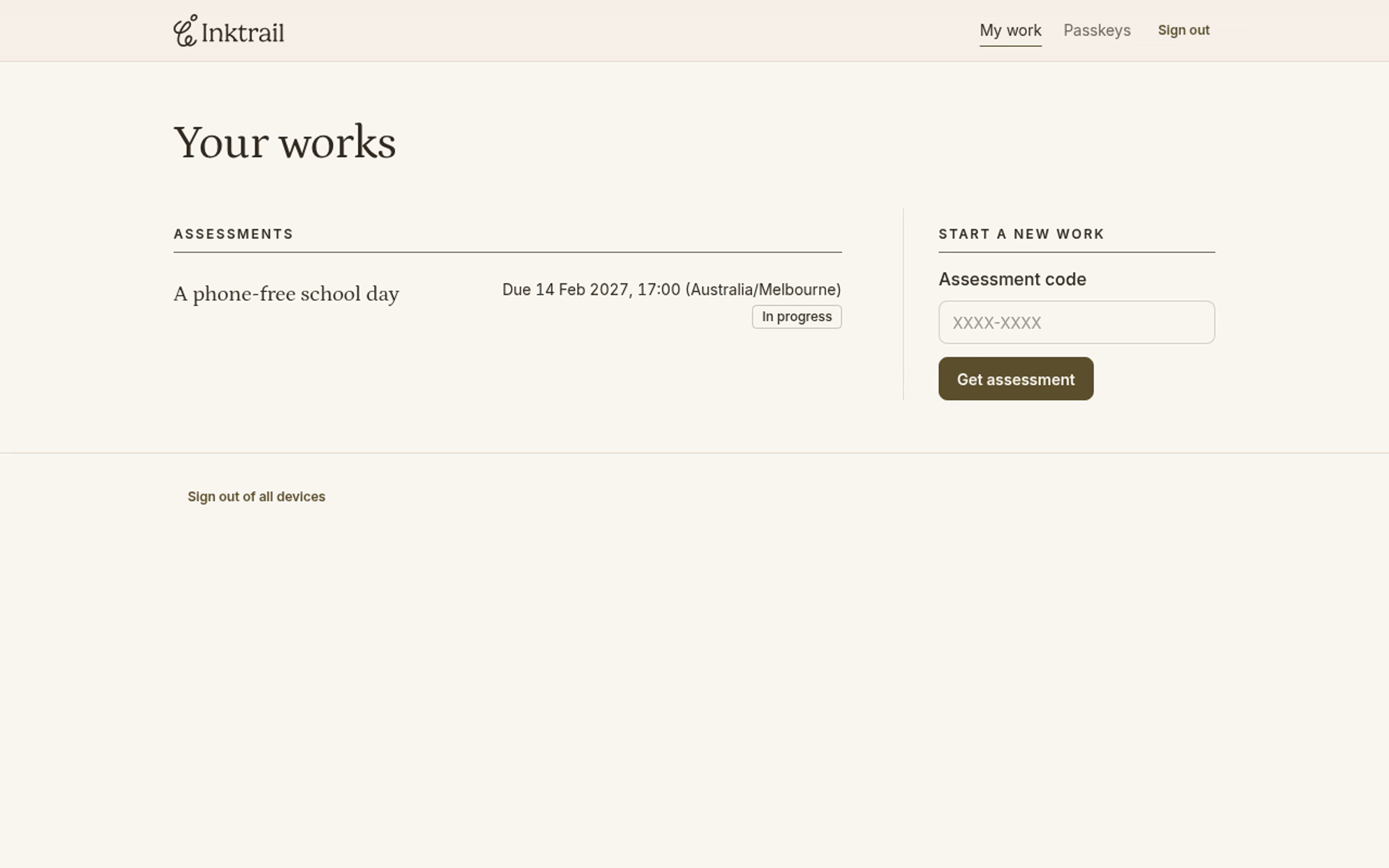
Start on Your works, signed in to your student account. In this example, you have an assessment open on another device too.
1. Save your writing and return to Your works
If you are still writing, open your assessment and select Start writing or Continue writing. Finish your changes, then select Your works in the editor. Inktrail saves pending changes before leaving the editor. If saving fails, keep the editor open and resolve the save problem before continuing.
Save any writing in other tabs or on other devices before you sign out. Signing out does not save their unsaved changes.
2. Choose Sign out of all devices
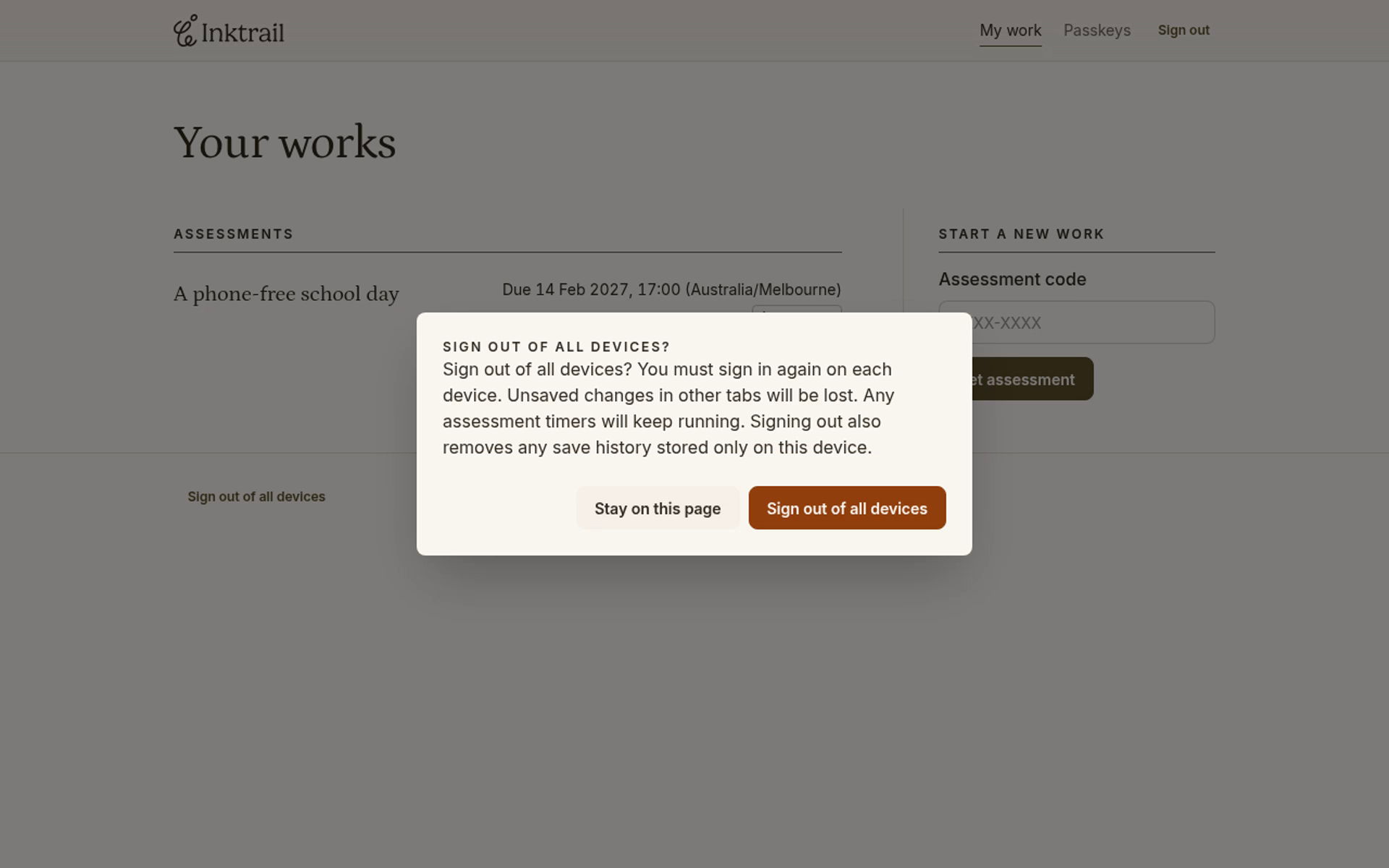
Below your work list, select Sign out of all devices. Read the confirmation: you must sign in again on each device, unsaved changes in other tabs will be lost, and assessment timers keep running. Signing out also removes save history stored only on this device.
Choose Stay on this page if you are not ready to sign out.
3. Confirm sign-out
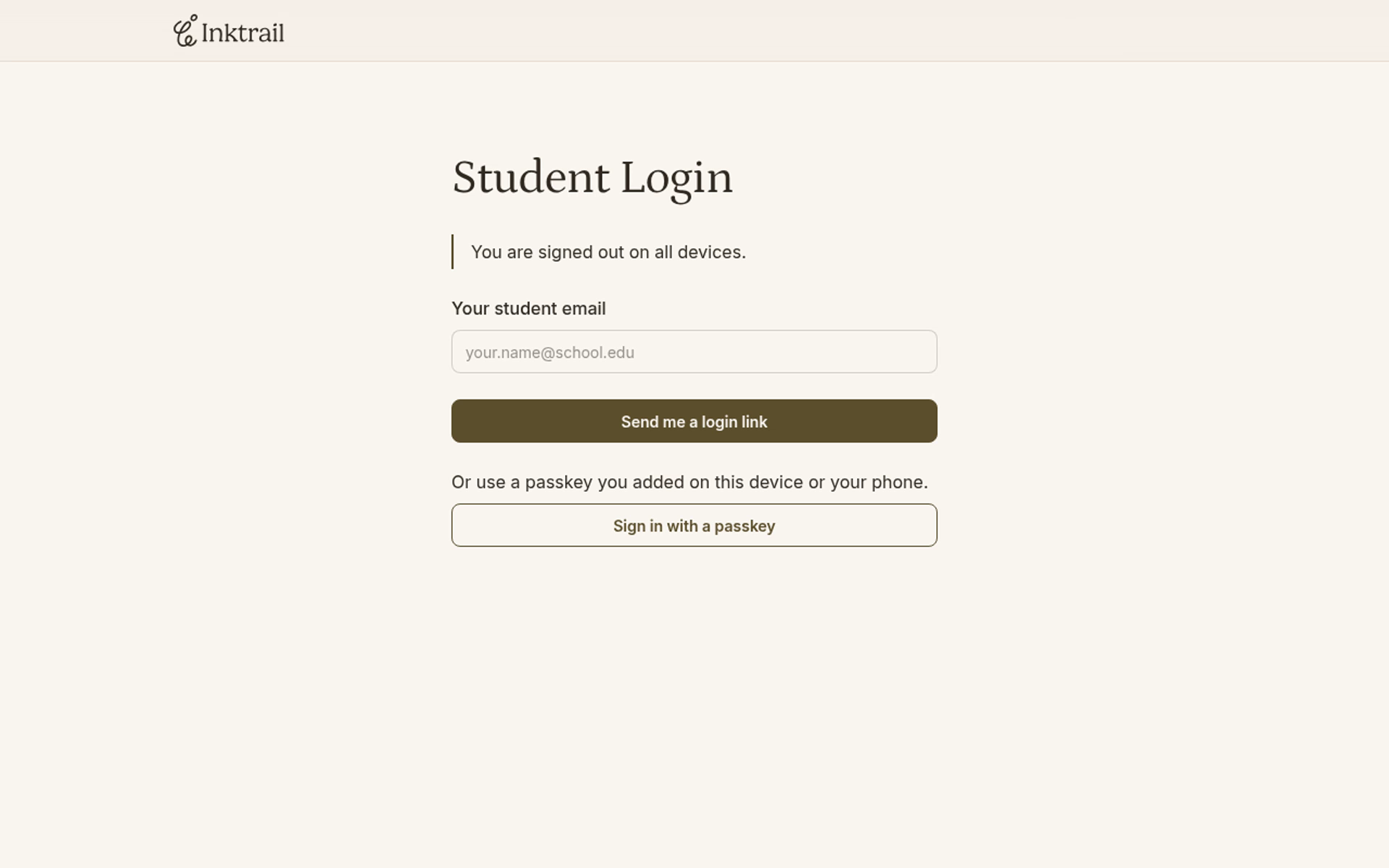
Select Sign out of all devices in the confirmation. The student sign-in page shows “You are signed out on all devices.” Your saved writing remains in Inktrail. You must sign in again to access your work on any device.